Quick Start
A wrap is made of two objects: a ring that you place and move, and the wrap itself, a rope or strap that the add-on builds around everything that passes through the ring.
The wrap is procedural. You don't edit it directly: clicking it selects its ring, and its look is set in the Wraps panel. To edit it by hand, convert it to a regular object.
Create a wrap
- In Object Mode, place the 3D Cursor where the wrap should go, for example with Shift+Right Click on the object.
- Open the Wraps tab in the 3D View sidebar (press N).
- Click Create Wrap. A ring appears at the 3D Cursor, and the wrap appears around the objects that pass through it.
- Pick a preset to start with, for example a leather belt, from the preset field in Selected Wrap. See Presets.
- Move, rotate and scale the ring until the wrap sits where you want it.
- Duplicate the wrap with Shift+D and move the copy, or delete it with X. Select the ring or the wrap, both work. The ring and the wrap are always copied and deleted together.
What you see in the viewport
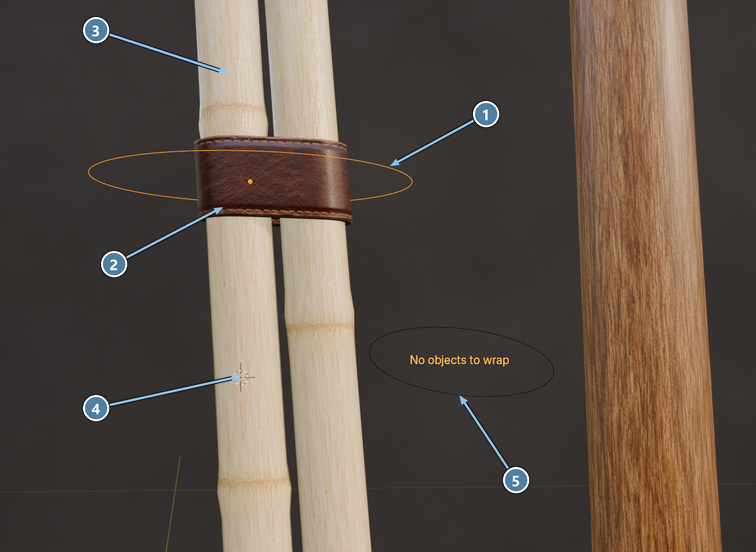
- Ring. The controller of the wrap. Select it to change the wrap in the sidebar. It is orange when selected.
- Wrap. The rope or strap. Clicking it selects its ring, so you never have to hunt for the ring.
- Objects to wrap. Everything that passes through the ring. Meshes, curves, NURBS surfaces, text and metaballs work, including their modifiers.
- 3D Cursor. New rings are created here.
- Empty ring. A ring with nothing passing through it shows No objects to wrap. It is drawn on top of other objects and stays visible even after you click Hide Controllers. Click the ring to select it. See No wrap appears.
Move, rotate and scale the ring
The ring decides where the wrap goes:
- Location chooses where the wrap passes around the objects.
- Rotation sets the angle of the wrap.
- Scale sets how far the ring looks for objects. Make the ring big enough to catch the whole cross-section you want to wrap, but not so big that it catches objects you don't want. Scale it along one axis to get an oval ring for flat or long cross-sections. The wrap catches objects inside the oval, just as the ring is drawn. The size of new rings is set in Preferences.
The thickness of a rope or the width of a strap are not set by the ring. They are in the Shape settings.
The wrapped objects are live too. Move, rotate or scale them, change their modifiers or edit their mesh, and the wrap follows. Mesh edits show up when you leave Edit Mode. See Updates.
Next steps
- Set the look yourself in Shape and Material & UV.
- Learn how the panel is organized.
- When you are done, convert the wrap to a regular object.