Updates and Controllers
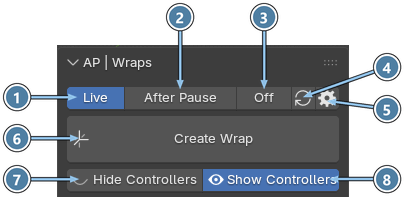
The top of the panel controls when wraps are rebuilt, creates new wraps and hides the rings.
- Live. Wraps update while you edit. This is the default.
- After Pause. Wraps update once you stop editing.
- Off. Wraps don't update until you click the refresh button or switch back to another mode.
- Update All Wraps. Rebuilds every wrap in the scene. It also helps when a wrap looks wrong, for example when woven ropes cross in the wrong order.
- Preferences. Opens the add-on Preferences.
- Create Wrap. Creates a new ring at the 3D Cursor. See Quick Start.
- Hide Controllers. Hides all rings except selected and empty rings.
- Show Controllers. Shows the rings again.
Update modes
| Mode | When wraps are rebuilt | Use it for |
|---|---|---|
| Live | While you move, rotate or scale objects, or change their modifiers. | Most scenes. |
| After Pause | When you stop editing for the After Pause Delay time. Default: 0.4 seconds. | Heavy scenes, where live updates slow the viewport down. |
| Off | Only when you click Update All Wraps or switch back to Live or After Pause. | Work on other parts of the scene. Moving objects near the wraps no longer rebuilds them. |
In Live and After Pause, only the wraps touched by a change are rebuilt. A wrap is rebuilt when its ring moves or when an object it goes around changes, including changes made by modifiers.
Edit Mode is the exception. While you edit a mesh, the wraps around it wait, and they update when you leave Edit Mode.
When to turn updates off
Because only the touched wraps are rebuilt, Live and After Pause stay fast even in big scenes. Still, while you work on other parts of the scene, moving an object into the reach of a ring starts a rebuild you don't need. Click Off, and the wraps stay as they are, like ordinary objects. When you switch back to Live or After Pause, every wrap is rebuilt at once. In a heavy scene this takes a moment, so for work on the wraps themselves After Pause is the better choice.
The highest number of live updates per second is set in the Preferences.
Hide and show controllers
Hide Controllers hides all rings, so you can look at a clean scene while the wraps stay visible. The ring of a selected wrap stays visible while it is selected, so you can still move it. Empty rings, with nothing passing through them, stay visible and are drawn on top of other objects, so you can always find and select them.
Show Controllers brings back the rings of the visible wraps. Wraps and collections that you hid yourself stay hidden.
Where wraps are stored
A new ring and its wrap go into the active collection, just like objects added with Shift+A. If the active collection is hidden, they go into the Scene Collection. Move the ring to another collection, and its wrap follows.