Wrap Groups
Wrap groups decide what the wraps go around. Every wrap belongs to one group, and every scene has a Default group.
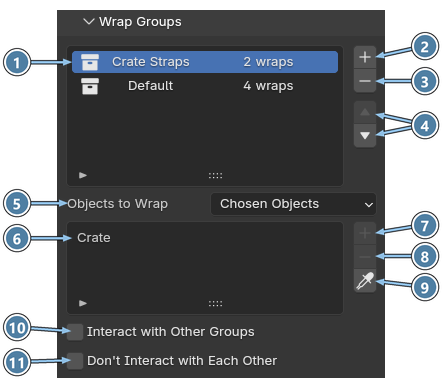
- Group list. All wrap groups of the scene. Each row shows how many wraps the group has. Click a group to select it, double-click to rename it. Click the wrap count to select the wraps of the group, Shift+Click to add them to the selection.
- Add Wrap Group. Creates a new group. Turn on Include Selected Wraps to move the selected wraps into it.
- Remove Wrap Group. Deletes the selected group and moves its wraps to Default. The wraps are not deleted. Default cannot be removed or renamed.
- Move up / down. Moves the group in the list. Ctrl+Click moves it to the top or bottom of the list. When groups interact, higher groups wrap over lower ones.
- Objects to Wrap. What the wraps of this group go around. See Objects to Wrap.
- Object list. The objects to wrap. It appears only when Objects to Wrap is set to Chosen Objects.
- Add Selected Objects. Adds the selected objects to the list.
- Remove Object. Removes the object selected in the list.
- Pick Object. Click an object or a wrap in the viewport to add it. Hold Shift to pick several.
- Interact with Other Groups. Lets the wraps of this group stack with wraps of other groups. Turn it on in every group that should interact.
- Don't Interact with Each Other. The wraps of this group pass through each other.
Objects to Wrap
| Option | The wraps go around |
|---|---|
| Visible Scene | Any visible object in the scene. |
| Chosen Objects | Only the objects in the list, even when they are hidden. |
| Collection | Only the objects in the chosen collection, even when they are hidden. A Collection field appears. |
Put a wrap into a group
- New wraps go into the group selected in the list.
- An existing wrap moves to another group with the Wrap Group field in its Layering settings.
Interact with Other Groups
Normally, wraps stack only on wraps of their own group. Turn on Interact with Other Groups in two or more groups, and their wraps stack on each other too. The group higher in the list lies on top.
Leave it off when you don't need it, because it makes updates slower.
Info
A group interacts only with other groups that also have this on. Turned on in one group alone, it does nothing.
Don't Interact with Each Other
Turn this on when the wraps of a group should ignore each other. They pass through each other instead of stacking or weaving. In the Layering section of these wraps, Layer Order and Weave turn grey, because they have no effect.
Tight coils
For a tightly wound rope, it is hard to place the turns close together while they push each other apart. Turn this on, and you can lay the turns right next to each other.