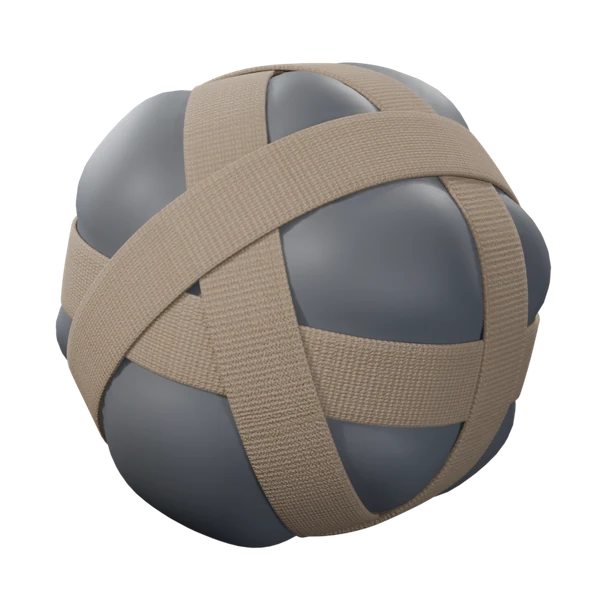
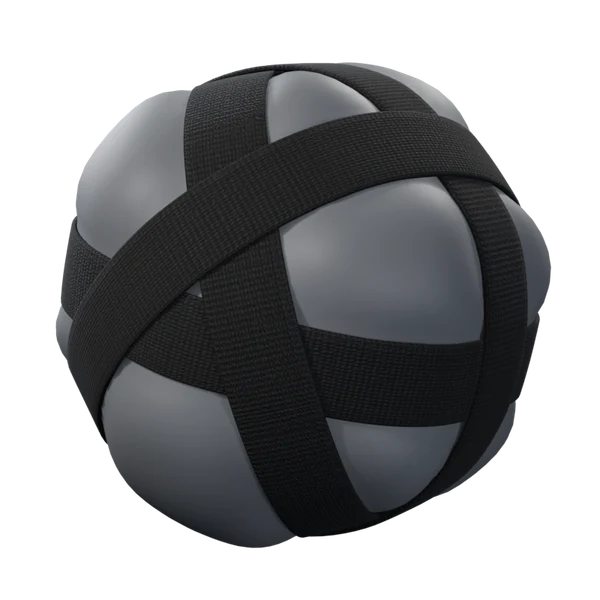
Presets
A preset saves the look of a wrap: its shape, size, detail, materials and UV settings. Save a look once and reuse it in any project.
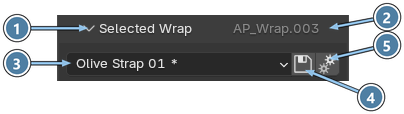
The preset controls are at the top of the Selected Wrap section.
- Selected Wrap. Click the header to expand or collapse the settings of the selected wrap.
- Wrap name. The name of the active wrap. With several wraps selected, it also shows how many other wraps are selected, for example
AP_Wrap +2. - Presets. Shows the last preset applied to the wrap. Click it to choose another preset. A
*after the name means the wrap was changed since the preset was applied. - Save Preset. Saves the look of the wrap as a preset, together with its materials and textures. It always opens the Save Preset window first.
- Manage Presets. Opens the preset manager.
Apply a preset
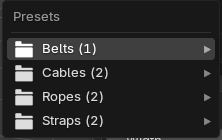
Select one or more wraps and click the preset field. The menu lists your preset categories. Hover over a category to see its presets, then click one to apply it to all selected wraps.
Start typing while the menu is open to search the presets by name.
Save a preset
Click Save Preset to open this window.
- Name. The name of the new preset.
- Category. The category the preset goes into. Type a new name to create a category.
- Warning. Shown when a preset with this name already exists in the category. Saving replaces it.
- Save. Saves the preset.
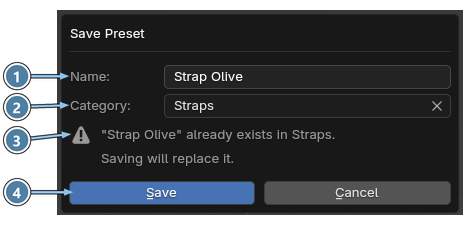
When you save a wrap that came from a preset, the dialog is filled with that preset's name and category, so saving updates it.
Manage presets
- Category. Click a category to show or hide its presets.
- Preset. Presets are listed under their category. A damaged preset file is marked with a warning icon.
- Rename. The pencil renames a category. For a preset, it renames it or moves it to another category.
- Delete. The bin deletes a preset. For a category, it first asks where to move its presets, then deletes the category.
- Add Category. Creates an empty category.
- Open Folder. Opens the preset folder in your file browser.
- Close. Closes the manager.
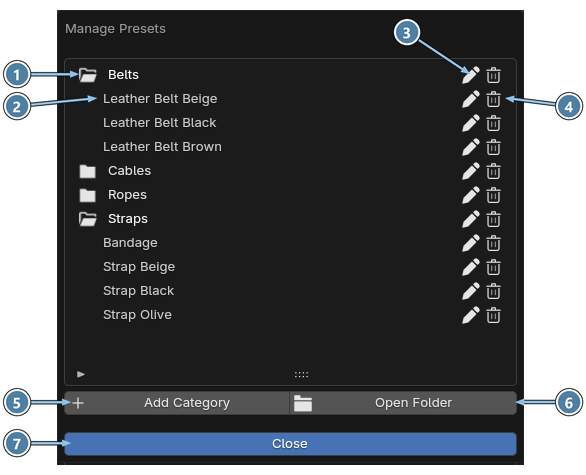
You can also open the manager from the Preferences, even when no wrap is selected.
Preset files
Each preset is a .json file with its settings. A preset with materials also gets a .blend file of the same name, with the materials and their textures packed into it. Each category is a folder. Presets outside any folder are listed under Uncategorized. Folders inside a category folder are not read, so presets there don't show up. The location of the preset folder is set in the Preferences.
Bundled presets
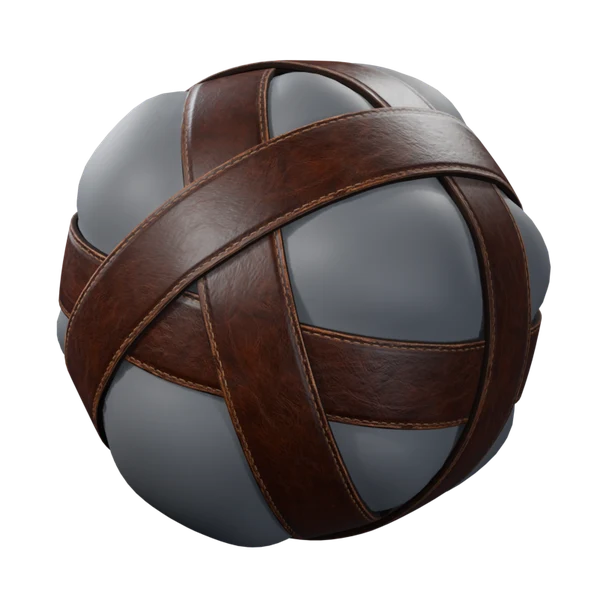
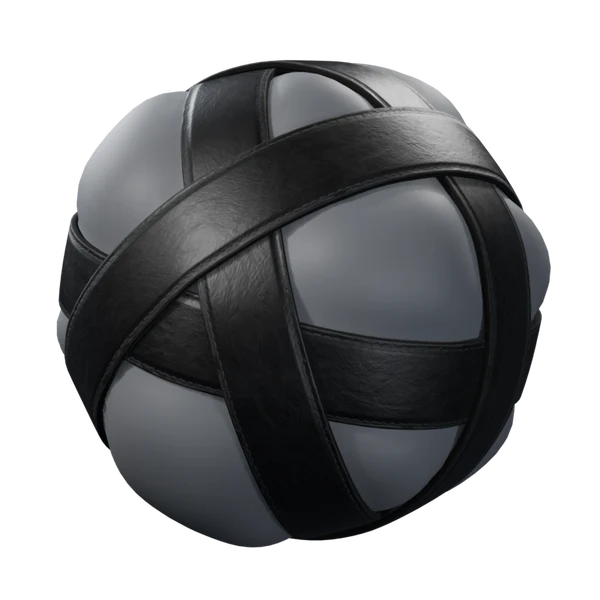
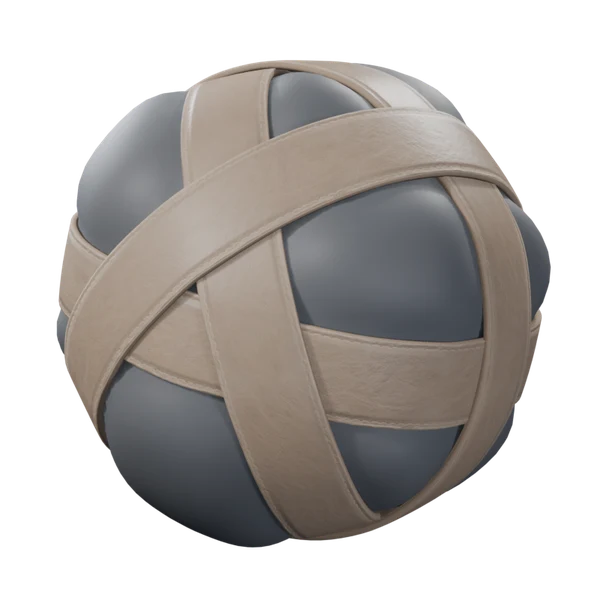
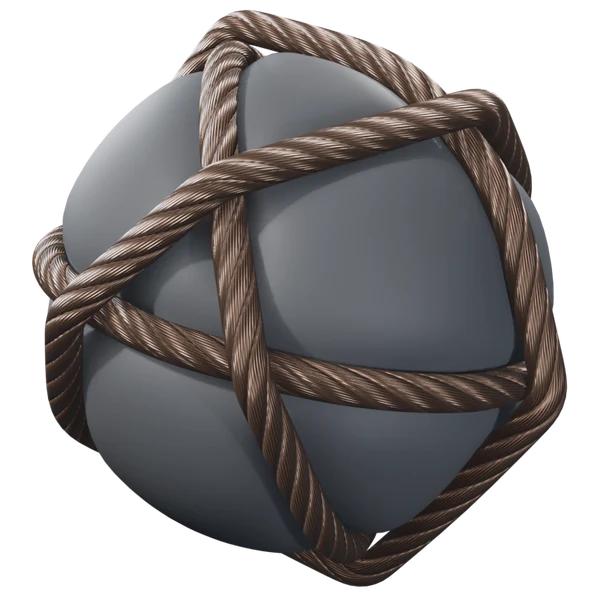
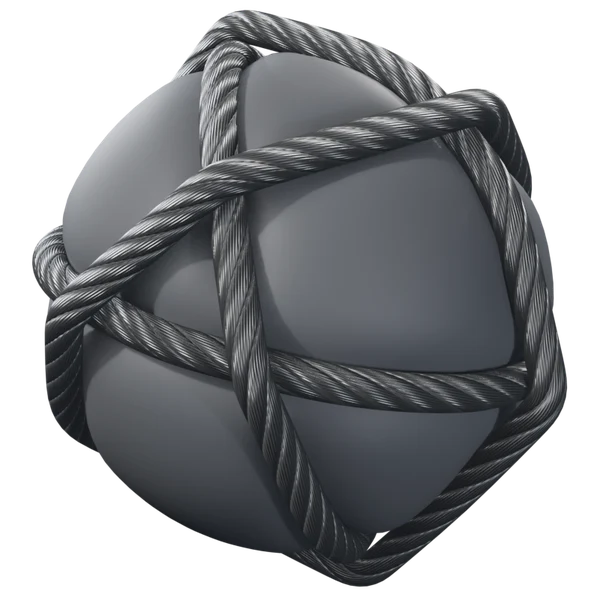
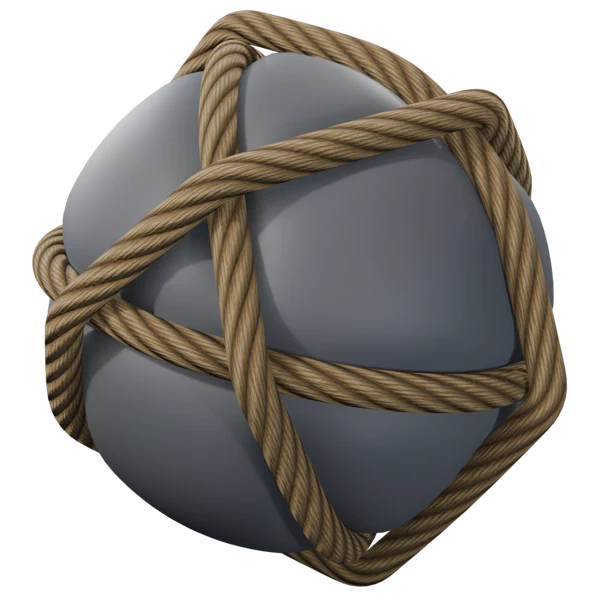
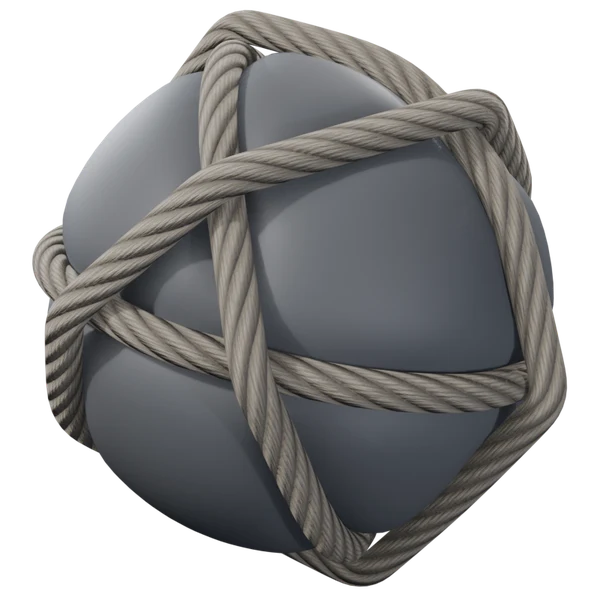
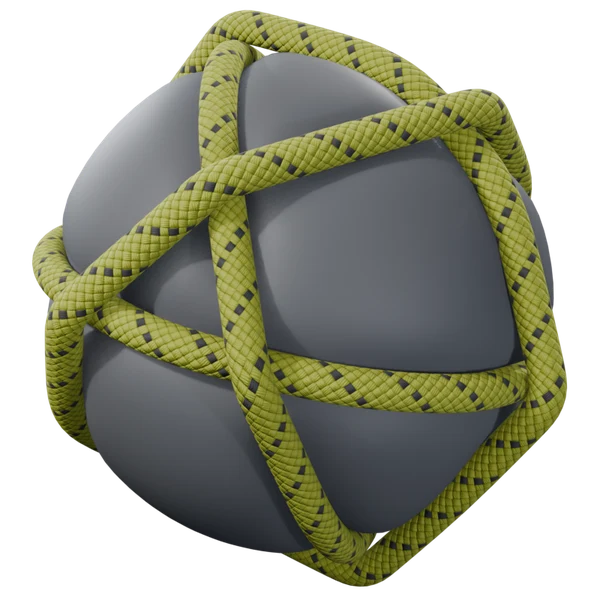
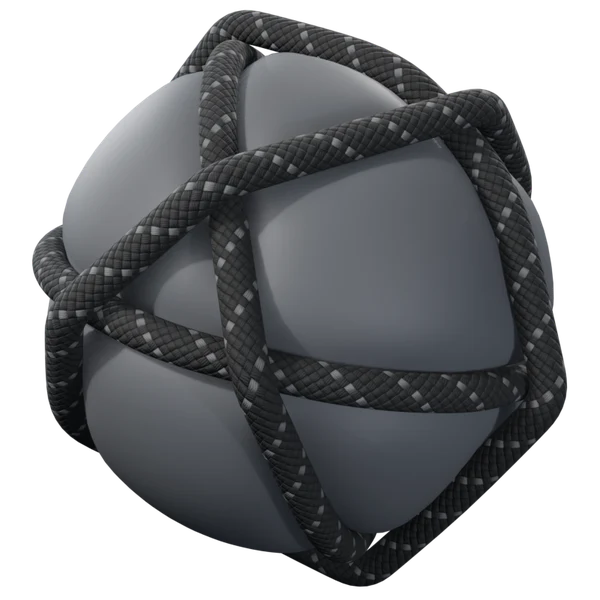
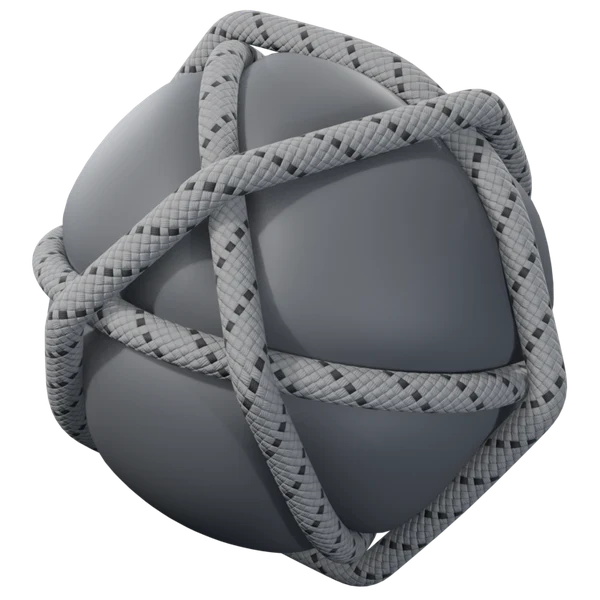
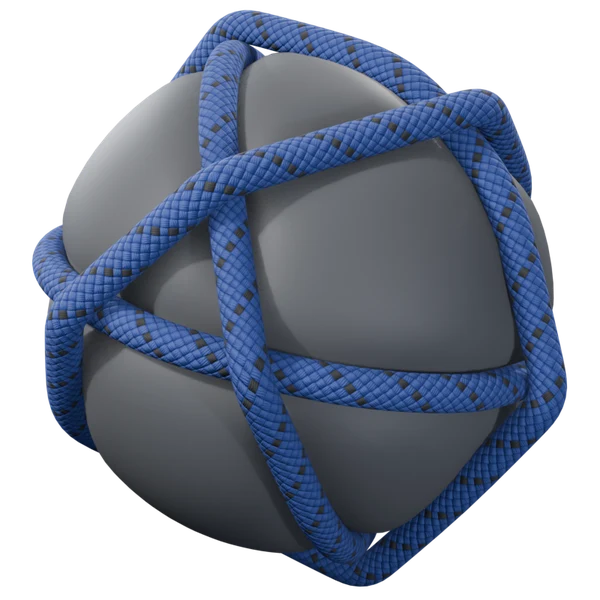
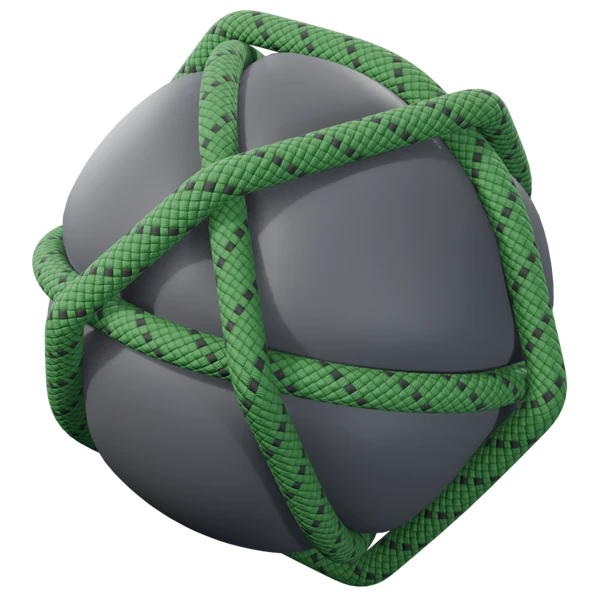
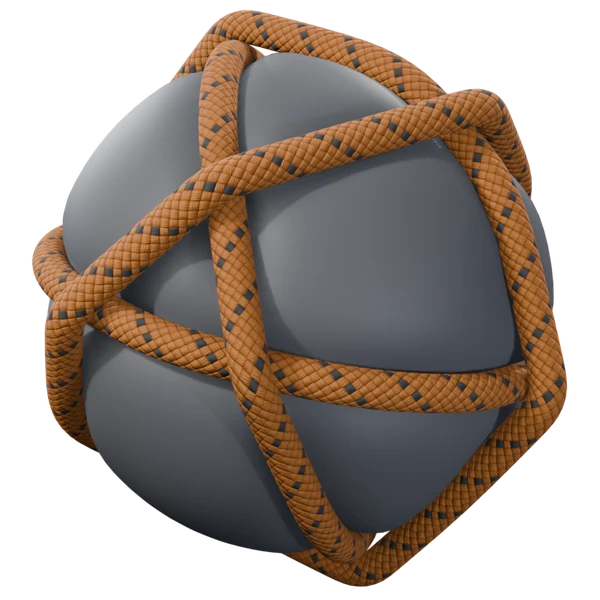
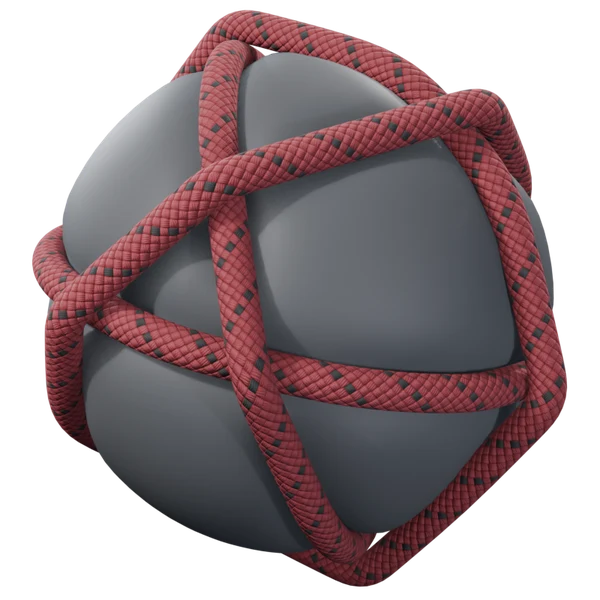
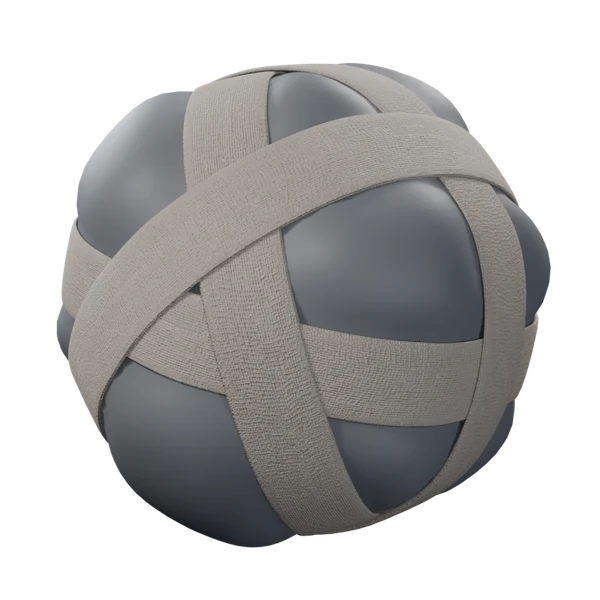
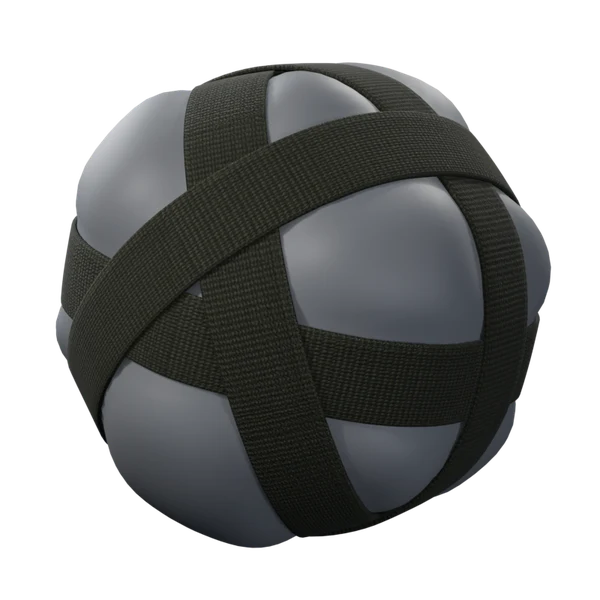
The add-on comes with 18 presets in the Belts, Cables, Ropes and Straps categories.