Soft Bodies
Soft bodies are objects that wraps press into, like skin, cushions, bags or tires. A wrap pulled around a soft body leaves a dent in its surface, and the dent follows the wrap as you move it.
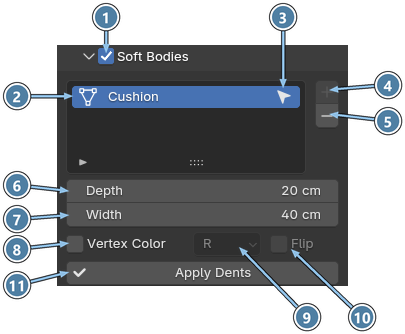
- Soft Bodies on / off. Turns off all soft bodies in the scene for a while. If the scene gets slow, turn it off, adjust the wraps, then turn it back on.
- Soft body list. The objects that wraps press into. Select a listed object in the viewport, and its row is picked in the list.
- Select Object. Selects the object of this row in the viewport.
- Add Selected Objects. Adds the selected objects to the list.
- Remove Object. Removes the object selected in the list. Its dents disappear.
- Depth. The maximum depth of the dents.
- Width. How gradually the dent levels out to the surface.
- Vertex Color. Makes some parts of the object harder than others, using its color attribute.
- Channel. The color channel that sets how soft the surface is: R, G, B or A.
- Flip. Inverts the channel.
- Apply Dents. Bakes the dents into the mesh and removes the object from the list.
Add a soft body
- Select the mesh that wraps should press into.
- Expand the Soft Bodies section and click +.
- Wraps that touch the object now leave dents in it.
The dents are made by the AP Wrap Soft Body modifier, which the add-on adds at the end of the object's modifier stack.
Depth and Width get starting values that suit the size of the object. Change them in the list for each soft body.
If the object has a non-uniform or negative scale, or it is a closed mesh with its faces pointing inward, the add-on shows a Soft Body Setup dialog first, because dents don't work correctly on such objects. Click Fix to apply the scale and turn the faces outward.
Apply dents
When the dents are final, pick the object in the list and click Apply Dents. The dents become part of the mesh, and the object leaves the list.
If the object has other modifiers above AP Wrap Soft Body, a window asks what to do with them:
- Apply Modifiers Too applies them together with the dents. The mesh looks exactly as before.
- Apply Only Dents keeps the other modifiers and bakes only the dents. This changes the order. For example, with Subdivision above, the mesh was smoothed first and then dented. Now it is dented first and smoothed after, so the shape can come out different.
Converted wraps
When you convert a wrap, the AP Wrap Soft Body modifier keeps its dent as it was at that moment. Other wraps keep pressing in as usual. Moving the converted object later does not move its dent. Delete the converted object, and its dent disappears. To remove all dents, remove the object from the soft body list.
Hard and soft areas
By default the whole object is equally soft. To make some parts harder, paint them on the object's active color attribute, for example in Vertex Paint mode, and turn on Vertex Color.
- With Flip off, a channel value of 1 gives the full dent and 0 leaves the surface hard.
- With Flip on, it is the other way around.
If the object has no color attribute, the section shows No color attribute.
Bones under the skin
On a body, paint the areas over bones, like knees, elbows and ankles, as hard. The wraps then press only into the soft parts, and the result looks more natural.
Tip
Dents look best on a mesh with enough faces. Add a Subdivision modifier to a low-poly object before you add it as a soft body.