Copy, Paste and Convert
The buttons at the bottom of the panel copy the look of one wrap to others and turn wraps into regular objects.
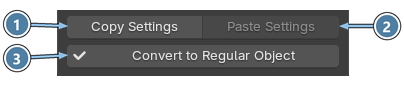
- Copy Settings. Copies the settings of the active wrap.
- Paste Settings. Applies the copied settings to all selected wraps. It is dimmed until you copy.
- Convert to Regular Object. Turns the selected wraps into regular objects. With nothing selected, the button reads Convert All to Regular Objects.
Copy and paste settings
- Select the wrap whose look you like and click Copy Settings.
- Select one or more other wraps.
- Click Paste Settings.
Shape, size, detail, materials and UV settings are copied. Wrap Group, Layer Order and Weave are not copied.
Convert to regular object
When a wrap is finished, convert it into an ordinary object. The ring is removed, and the wrap stays where it is as a mesh that you can edit, sculpt, unwrap and export. A converted wrap no longer updates.
- Select wraps and click Convert to Regular Object to convert only them.
- With nothing selected, the button becomes Convert All to Regular Objects and converts every wrap in the scene.
If the wrap had subdivision, the Subdivision modifier stays on the object, so you can still change or apply it.
Tip
After conversion, other wraps wrap around a converted wrap like any other object. Select all the wraps that cross each other and convert them together.